Some quick animation smear guides I put together for a friend! not sure if it works as a tutorial without my in person commentary, also more intended as a guide to show examples of basic/common smear types :O
…might make a tutorial on how to use smears another time…
I decided to jump into the program and figure it out. So, here’s a super quick and dirty guide to all the basic info you might need.
Toolbar / Brushes
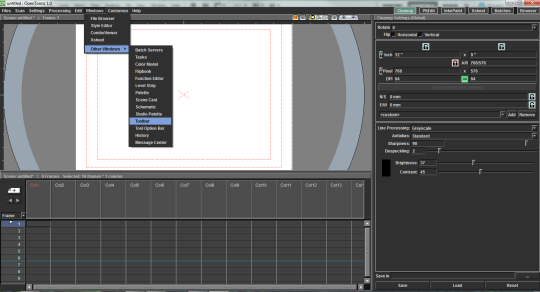
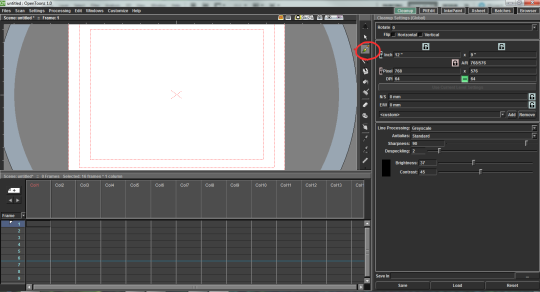
The toolbar is automatically hidden. You can get it with Windows > Other Windows > Toolbar
It will open as a pop-up and you can drag it and snap it into place.
Timeline
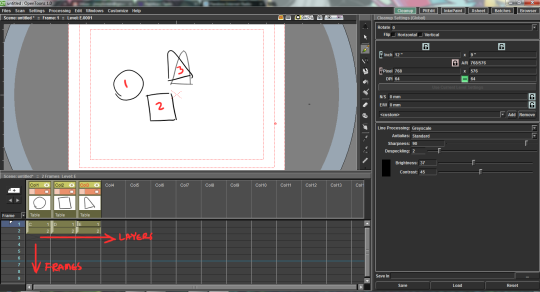
The timeline is a little different from Flash/Toonboom Harmony in that it reads more like a x-sheet. Layers (”Columns”) go from left to right and Frames go top to bottom.
Right-clicking on a frame will give you options to put the frame on 2′s, etc. (the “step” option).
Onion Skin
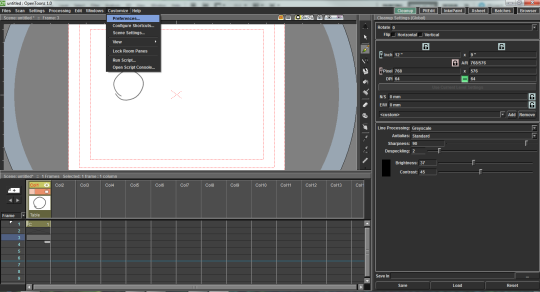
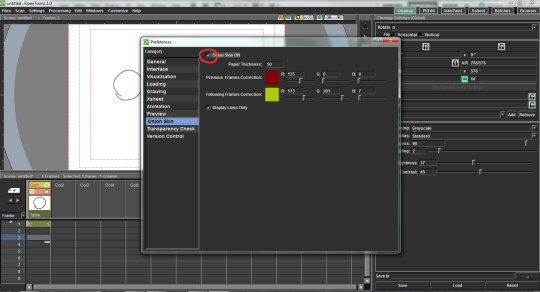
This was one of the more confusing ones. You can get to it with Customize > Preferences > Onion Skin
Be sure to check the box next to “Onion Skin ON”.
Getting onion skin to work in the timeline is a little weird at times. Like in Flash and Harmony, there are markers you can drag to expand the onion skin. If you aren’t seeing your previous drawing, try putting your frame on 2′s.
Viewing Your Work
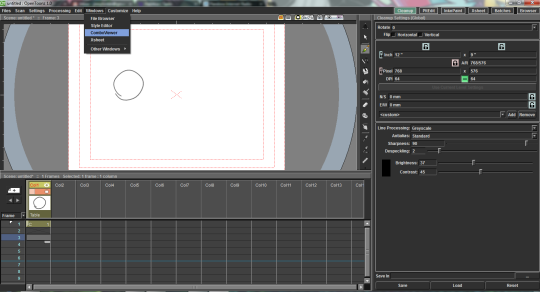
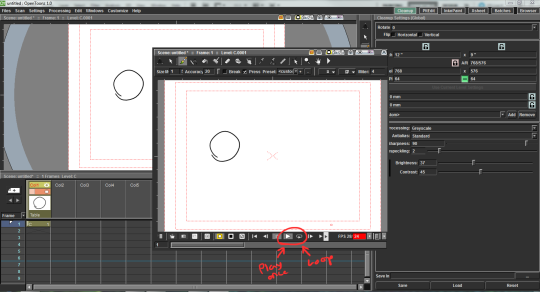
To play your animation you’re going to need to open a new window by going to Windows > ComboViewer
It has play, loop, etc.
Anyway I hope that helps! Basically just play around with it.




 Aliquid de Magis